How to create and delete stickers on your iPhone
iPhone stickers are a clever way to make conversations more personal and fun, but a good sticker library requires creating new and deleting old, overused ones.
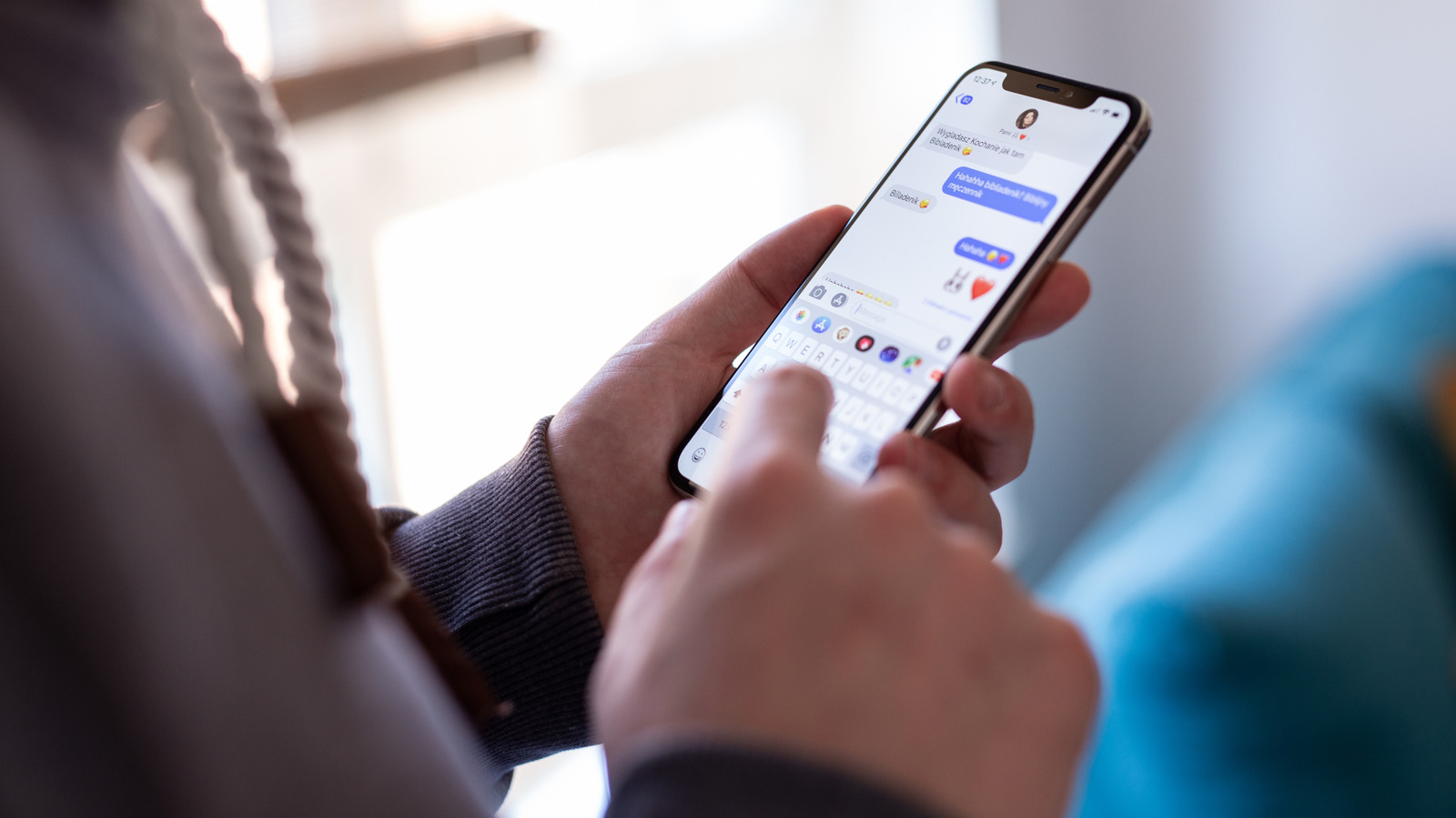
Stickers on an iPhone offer a personal and fun way to enhance conversations in the Messages app. These sticker reactions allow users to express emotions in a unique manner, adding flair to text messages. The process of creating stickers is straightforward, requiring no photo editing skills. Users can transform any photo or video into a sticker, even using animated stickers from Live Photos for dynamic reactions.
Once created, stickers are saved in a library for easy reuse in future chats. Users can also delete unwanted stickers from their collection, keeping only the ones they find useful. To create a sticker, select a clear foreground subject in an image from Photos, hold it down to highlight it, and then choose "Add Sticker." This sticker is then stored in the user's library and can be used in future conversations.
Creating stickers from within a chat is equally simple, accessed by tapping the "+ (Plus)" icon and choosing "Stickers" from the menu. This method highlights elements from recent conversations that can be turned into stickers, making the process quicker for ongoing chats. Using stickers is as easy as selecting one from the library and tapping "Send" in any iMessage conversation.
The sticker will appear in the message draft, similar to attaching a photo. For added fun, users can press and hold a sticker to "peel" it, then drag it to where they want it to appear in the conversation. This "peel and stick" feature adds a playful element to sticker usage. Stickers can also be managed within the Messages app, allowing users to rearrange them or delete them by pressing and holding on the sticker and selecting "Rearrange" or "Minus."
Additionally, stickers can be sent in RCS chats with Android users, although they may not display the "peel and stick" feature properly. SMS conversations, however, may display stickers less clearly due to size limitations. Beyond Messages, stickers are compatible with various other messaging apps like WhatsApp, and users can also use them in apps that support Markup mode, such as Mail and Notes.
This versatility means stickers can be used creatively across different platforms and applications. For those who want more options, the iPhone App Store offers a variety of sticker packs from different apps, including Genmoji, Memoji, and third-party apps. These additional sticker packs provide even more ways to personalize conversations.
Importantly, any stickers created on one device are synced across all devices using the user's Apple account, ensuring consistency and accessibility across devices. In summary, stickers on an iPhone are a fun and customizable way to add personal flair to conversations, with a simple setup process and numerous uses across different apps and platforms.
Written by urgent.news from Engadget's reporting — not their text. Machine-written — may contain errors; check the original before relying on it.